Universal Cable
Universal Cable is RNGTech's one cable for everything. The same cable carries FE, fluids, and items between machines, and can extend an AE2 or Refined Storage network. The cable itself stores nothing. A Universal Connector on the cable next to each machine decides what moves, which way, and how fast, through the connector modules you install in it.
Cables, connectors, and modules do not roll rarity or affixes, and cannot be refined.
Obtaining
Crafting
One craft makes 12 Cables or 2 Universal Connectors. The  Crude Energy Connector is the only connector module you can craft by hand.
| Ingredients | Crafting recipe | Notes |
|---|---|---|
| Cable Any Wooden Slabs + Redstone Dust | 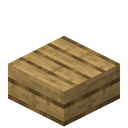 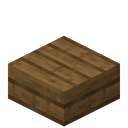 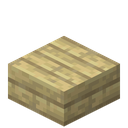 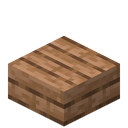         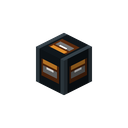 12 12 | |
| Cable Cable | ⇄ | |
| Universal Connector Iron Ingot + Redstone Dust + Cable |   2 2 | |
| Crude Energy Connector Redstone Dust + Cable + Iron Coil |  2 2 | Requires the Iron material to be enabled. |
| Advanced Item Filter Basic Item Connector + Basic Electric Circuit + Redstone Dust + Glass Pane |    ⇄ ⇄ |
The network connectors have recipes only when their mod is installed:
 AE2 Network Connector: a Universal Connector, two Basic Energy Connectors, an AE2 Engineering Processor, Fluix Glass Cables, and redstone.
 Refined Storage Network Connector: a Universal Connector, four Basic Item Connectors, Refined Storage Cables, and a Construction Core and Destruction Core.
Metal Press
Every other Energy, Fluid, and Item Connector is pressed in a Metal Press with a Connector Mold. Energy Connectors start from a coil, Fluid Connectors from a casing, and Item Connectors from a gear.
| Input | Output | Time | Heat | Min. temperature | |
|---|---|---|---|---|---|
  | → |  2 2 | 12 s | 2,391 HU | 1,200 |
 | → |  2 2 | 9 s | 1,266 HU | 900 |
 | → |  2 2 | 9 s | 1,266 HU | 900 |
| → |  2 2 | 6 s | 474 HU | 900 |
 | → |  2 2 | 6 s | 474 HU | 900 |
 | → | 2 | 6 s | 474 HU | 900 |
 | → |  2 2 | 7 s | 712 HU | 900 |
 | → |  2 2 | 6 s | 474 HU | 900 |
 | → |  2 2 | 6 s | 474 HU | 900 |
 8 8 | → |  4 4 | 40 s | 49,864 HU | 2,100 |
 | → |  2 2 | 8 s | 991 HU | 950 |
 | → |  2 2 | 7 s | 712 HU | 900 |
 | → |  2 2 | 7 s | 712 HU | 900 |
 | → |  2 2 | 10 s | 1,672 HU | 1,100 |
 | → |  2 2 | 8 s | 950 HU | 900 |
 | → |  2 2 | 8 s | 950 HU | 900 |
Breaking
Mine Cables and Universal Connectors with a pickaxe. Aiming at a connector on a cable removes only that connector and leaves the cable. Mining the cable core breaks the cable and drops every connector on it, with their installed modules.
Usage
Building a network
- Place Cables. Touching Cables link up on their own, unless they are dyed different colors (see Dyed cables).
- Use a Universal Connector on the cable face beside a machine. You can also use it on the machine itself when a Cable is next to it. The connector mounts on that face of the cable.
- Right-click the connector with an empty hand to open it, and install modules: an Energy Connector for FE, Fluid Connectors for fluids, Item Connectors for items.
- Set each module's channel and mode. Only connectors on the same channel exchange anything.
One Cable can hold a connector on each of its six faces.
A network reaches only as far as the loaded world. Cables and machines in unloaded chunks drop out of the network and move nothing, and they join back in by themselves once their chunk loads again. Cables never keep chunks loaded.
Energy Connectors are modules: they go in a Universal Connector's Energy tab, or in the Gear slot of a Tool Bench or Forestry Cart Station. Right-clicking a Cable with one does not place it on the cable; if you aim at a connector, that connector's screen opens instead. Direct Energy Connectors on a cable face from older worlds keep working, and you can still configure and mine them, but you cannot place new ones.
Standalone plates
A Universal Connector placed on its own, with no Cable, works as a standalone plate. Use another Universal Connector on a different face of the same space to add a second plate there. Plates join a network only once they sit on a Cable: use a Cable on the plate's space, or on the machine face behind it, and the space turns into a Cable. Every plate in it keeps its modules and settings.
Dyed cables
Dye keeps two cable lines apart when they run side by side. A dyed Cable links only to Cables of its own color and to undyed Cables, so a red line and a blue line can touch along their whole length and stay two separate networks. Undyed Cable links to every color, and connectors and machines work the same on any color.
- Crafting: surround a dye with eight Cables to get eight Cables of that color. Already dyed Cables can be dyed again this way.
- In place: right-click a placed Cable with a dye to recolor it. This uses one dye.
- Removing dye: put a dyed Cable in a crafting grid on its own to get an undyed Cable back. You can also use dyed Cables on a water cauldron to wash the whole stack, which uses one level of water.
A dyed Cable keeps its color when you mine it. The color shows on the cable's glow strip and in its tooltip.
Connector settings
| Setting | What it does |
|---|---|
| Channel | 0–15. Connectors only exchange with the same channel. Energy, Fluid, Item, and Bridge channels are separate. |
| Mode | Energy: Input takes FE from the machine into the cable, Output sends FE from the cable into the machine, and Both does both. Hover a mode button for its description. Fluid and Item rows: IN pulls from the machine into the cable, OUT pushes from the cable into the machine. |
| Attach As | Which side of the machine the connector acts as. For example, a connector under a machine can insert as if it were on top. Set a Fluid or Item row to None to switch it off. |
| Distribution | Energy only. How this connector splits the FE it gives each tick: Round Robin rotates between outputs, Even splits it evenly and then sends leftovers to outputs that can still take more, First Available fills outputs in order. |
| Filters | Fluid and Item rows each have two ghost filter slots. Filters are copies and are never used up. |
A new connector starts on channel 0, with Energy mode Both, Distribution Round Robin, and every Fluid and Item row set to IN. Attach As starts as the machine face the connector actually touches. Each Fluid and Item row has its own mode, channel, and Attach, and several rows can share a channel and side.
Energy
The Energy tab has one Energy Connector slot. The connector pulls FE from machines that output it, carries it through the cable, and delivers it to Output connectors on the same channel. The installed connector's tier is the cap on how much FE that endpoint moves.
| Connector | Stage | Transfer |
|---|---|---|
| Crude Energy Connector |
1 | 64 FE/t |
| Basic Energy Connector |
1 | 128 FE/t |
| Copper Energy Connector |
2 | 512 FE/t |
| Gold Energy Connector |
3 | 2,048 FE/t |
| Sparksteel Energy Connector |
5 | 8,192 FE/t |
| Arclite Energy Connector |
6 | 32,768 FE/t |
| Exotic Energy Connector |
8 | 1,000,000 FE/t |
The tier is a per-tick cap in both directions. A connector takes at most its tier in FE/t from its machine, and delivers at most its tier in FE/t into its machine, however many generators feed the network. Most machines do not limit how fast they take or give FE, so the connector tier is usually what sets the rate.
Sharing the load. Each tick, every energy channel moves its FE in one step, after all machines have run. Every Input or Both connector offers what its machine can give, every Output or Both connector asks for what its machine can take, and then the FE is shared out in this order:
- Generators feed machines. When generators offer more than the machines need, each generator gives the same share of what it offers, so they share the load instead of one doing all the work.
- Spare FE from generators charges storage blocks.
- Storage blocks cover what the machines still need.
- Storage blocks even out with each other (see below).
Each connector's Distribution setting decides how its own share is split between the receiving connectors. The result does not depend on the order you placed things in. Machines that push FE into a connector on their own deliver it right away, by the same rules.
Storage balancing. A storage block is any block that can both take and give FE at that moment, such as a Battery Chassis. Between two storage blocks whose connectors are both on Both, FE flows only from the fuller block to the emptier one, by fill percentage, and stops once they are equally full. Gaps under 1% move nothing, so idle banks do not trade FE back and forth and lose it to charge and discharge losses. Daisy-chained banks still pass charge along: a generator charges the first bank, and the first bank shares with the next. Generators still charge banks, and banks still feed machines. A completely full bank passes its overflow on freely, and a completely empty bank takes FE freely. To fill one bank from another regardless of fill, set the source bank's connector to Input or the destination bank's connector to Output.
No FE on this side. You can put a connector on any face, but many machines take or give FE only on some sides. If the machine has no FE on the connector's Attach As side, the Energy tab and the Wrench hologram show a red warning: No FE on this side of the target. Change Attach As or move the connector.
Machine readouts. A machine's Jade tooltip and info panel count only connectors that actually move FE for it: the mode must match the direction, and the Attach As side must be one where the machine has FE. When those connectors carry less than the machine needs, it shows Attached connector limits input energy, or Attached connector limits output energy on a generator.
Fluids
The Fluid tab has three rows, each with a Fluid Connector slot, its own mode, channel, and Attach setting, and two filter slots. An IN row drains a shipment from the machine, waits, and repeats. An OUT row fills its machine from shipments arriving on its channel, up to its tier's shipment size. To filter a row, put a filled bucket or other fluid container in a filter slot.
Each shipment can jam: the row pauses for a few seconds without losing any fluid. Several IN rows on the same machine side and channel run in parallel, so stacking rows raises throughput.
An IN row that finds nothing it can send, because its machine is empty, no OUT row on its channel can take the shipment, or its filter matches nothing, waits before it looks again. It waits its tier's time between shipments, but never more than one second, and it looks again at once when cables, connectors, or their settings change. Item rows work the same way.
A connector with an IN row also accepts fluid or items that its machine pushes out on its own, and sends them to that row's channel. Pushed shipments follow the same size, wait, jam, and filter rules.
Splitting shipments. Each fluid or item shipment is split evenly between every connector with an OUT row on its channel that can take it, however far away each one is. If a machine is full or its filter rejects the shipment, its share goes to the others. When a shipment does not divide evenly, the extra goes to a different machine each time, so a Basic Item Connector feeding three Furnaces sends one item to each in turn.
| Connector | Stage | Shipment | Every | Jam chance, pause |
|---|---|---|---|---|
| Basic Fluid Connector |
1 | 100 mB | 4 s | 12%, 8 s |
| Copper Fluid Connector |
2 | 250 mB | 2 s | 8%, 6 s |
| Gold Fluid Connector |
3 | 500 mB | 1 s | 5%, 4 s |
| Sparksteel Fluid Connector |
5 | 1,000 mB | 0.5 s | 2%, 3 s |
| Arclite Fluid Connector |
6 | 4,000 mB | 0.2 s | 1%, 2 s |
Items
The Item tab works the same way as the Fluid tab, with three Item Connector rows. Put an item in a row's filter slot to allow only that item. See Automation for how machines sort the items you send them into their input slots.
| Connector | Stage | Shipment | Every | Jam chance, pause |
|---|---|---|---|---|
| Basic Item Connector |
1 | 1 item | 4 s | 12%, 8 s |
| Copper Item Connector |
2 | 4 items | 2 s | 8%, 6 s |
| Gold Item Connector |
3 | 16 items | 1 s | 5%, 4 s |
| Sparksteel Item Connector |
5 | 32 items | 0.5 s | 2%, 3 s |
| Arclite Item Connector |
6 | 64 items | 0.2 s | 1%, 2 s |
Advanced Item Filter
An Advanced Item Filter is a reusable filter you configure once and drop into an item filter slot. Right-click it to set it to allow or deny, and match by sample items, item tags, mod, component stage, Stability, identified state, or rarity. Deny filters are checked first, then allow filters. A row with only deny filters passes everything not denied.
The  Miner's Companion accepts the same filter.
Network bridges
The Bridge tab holds one AE2 Network Connector or Refined Storage Network Connector. Two bridge connectors of the same kind, on the same bridge channel, join their AE2 or Refined Storage networks through your RNGTech cables. AE2 never links to Refined Storage, and RNGTech does not read or store anything in those networks. Without the matching mod installed, the bridge shows its status but does nothing.
Wrench
The  Wrench manages links and shows connector settings.
- Right-click the cable arm that leads to another Cable to switch that link off. To switch it back on, right-click the side of the cable core facing the other Cable. Disabled links stay off after reloads, and only the Wrench turns them back on. Cables dyed different colors cannot be linked.
- Right-click a connector on a cable face to open its screen.
- Hold the Wrench while looking at a Universal Connector, standalone or on a cable, to see a hologram of its settings. Direct Energy Connectors left on a cable face from older worlds show no hologram.
- The hologram has Summary, Energy, Item, and Fluid pages. The Summary page also shows the bridge, such as
Bridge: AE2, channel 3. Shift + right-click cycles the pages, and so does the Cycle Wrench View key. That key has no default binding; set it under Controls. - The Energy, Item, and Fluid pages add a red line under a connector or module that cannot move anything: no other connector on its channel, nothing on the channel that can receive from or supply its mode (for example two inputs on one channel), or a module with no Attach side. Working connectors show no warning.
Configurator
The  Configurator copies connector settings and pastes them onto other connectors. It works on standalone and cable-side Universal Connectors and on direct Energy Connectors left on a cable face from older worlds.
Right-click a connector to open the Configurator menu:
- Copy All, Copy Energy, Copy Fluid, or Copy Item stores those settings on the Configurator. A partial copy replaces only that part of the stored preset.
- Paste applies the stored channels, modes, Distribution, Attach As, and ghost filters. It never changes installed modules unless module paste is on.
An Attach setting left on its starting side is stored as Default, so a preset pastes correctly onto connectors facing other directions.
To edit the stored preset, hold the Configurator and press the Open Configurator Preset key. It has no default binding; set it under Controls. The preset screen can:
- Pick a category (All, Energy, Fluid, or Item), then set its channel, cycle its mode, or set its Attach to Default, None, or a fixed side, for every row at once.
- Flip every mode in the preset: Input and Output swap, and so do IN and OUT.
- Reset the selected category, or Reset All.
- Turn module paste on (Mod On). Paste then also installs the matching modules from your inventory and hands back any modules it replaces. If a module is missing or you have no room for the replaced ones, nothing changes at all.
- Turn the Gear helper on (Gear On). Right-click a machine to fill its empty Gear slots from your inventory, with the same rules as placing Gear by hand. It does not let pipes or hoppers reach Gear slots.
The Configurator can also copy Machine Mastery builds. See Machine Mastery.
Screen
A Universal Connector's screen has five tabs:
- Energy: the Energy Connector slot with mode, channel, Distribution, and Attach settings, plus FE in and out last tick and the red warning when the machine has no FE on the Attach As side.
- Fluid: three Fluid Connector rows with mode, channel, Attach, and two filter slots each.
- Item: three Item Connector rows with mode, channel, Attach, and two filter slots each.
- Bridge: the network connector slot, bridge channel, and link status.
- Network: a read-only overview of the whole cable network: cables, connectors, modules, and channels. The FE meter shows power actually delivered on this connector's energy channel, as In and Out averaged over 1, 5, or 15 minutes, plus Max: the most the channel can move with its current connectors. It does not count demand that went unmet. Averages cover only the time measured so far, so a new network shows its real rate at once, and the history is kept when the network is rebuilt, extended, or merged. Hover In or Out for the live rate. Clear network cache forces a rebuild.
Data values
| Name | Resource location | Form | Translation key |
|---|---|---|---|
| Cable | rngtech:cable | Block | block.rngtech.cable |
| Universal Connector | rngtech:universal_connector | Block | block.rngtech.universal_connector |
| Crude Energy Connector | rngtech:crude_energy_connector | Item | item.rngtech.crude_energy_connector |
| Basic Energy Connector | rngtech:basic_energy_connector | Item | item.rngtech.basic_energy_connector |
| Copper Energy Connector | rngtech:copper_energy_connector | Item | item.rngtech.copper_energy_connector |
| Gold Energy Connector | rngtech:gold_energy_connector | Item | item.rngtech.gold_energy_connector |
| Sparksteel Energy Connector | rngtech:sparksteel_energy_connector | Item | item.rngtech.sparksteel_energy_connector |
| Arclite Energy Connector | rngtech:arclite_energy_connector | Item | item.rngtech.arclite_energy_connector |
| Exotic Energy Connector | rngtech:exotic_energy_connector | Item | item.rngtech.exotic_energy_connector |
| Basic Fluid Connector | rngtech:basic_fluid_connector | Item | item.rngtech.basic_fluid_connector |
| Copper Fluid Connector | rngtech:copper_fluid_connector | Item | item.rngtech.copper_fluid_connector |
| Gold Fluid Connector | rngtech:gold_fluid_connector | Item | item.rngtech.gold_fluid_connector |
| Sparksteel Fluid Connector | rngtech:sparksteel_fluid_connector | Item | item.rngtech.sparksteel_fluid_connector |
| Arclite Fluid Connector | rngtech:arclite_fluid_connector | Item | item.rngtech.arclite_fluid_connector |
| Basic Item Connector | rngtech:basic_item_connector | Item | item.rngtech.basic_item_connector |
| Copper Item Connector | rngtech:copper_item_connector | Item | item.rngtech.copper_item_connector |
| Gold Item Connector | rngtech:gold_item_connector | Item | item.rngtech.gold_item_connector |
| Sparksteel Item Connector | rngtech:sparksteel_item_connector | Item | item.rngtech.sparksteel_item_connector |
| Arclite Item Connector | rngtech:arclite_item_connector | Item | item.rngtech.arclite_item_connector |
| Advanced Item Filter | rngtech:advanced_item_filter | Item | item.rngtech.advanced_item_filter |
| AE2 Network Connector | rngtech:ae2_network_connector | Item | item.rngtech.ae2_network_connector |
| Refined Storage Network Connector | rngtech:refined_storage_network_connector | Item | item.rngtech.refined_storage_network_connector |
| Wrench | rngtech:wrench | Item | item.rngtech.wrench |
| Configurator | rngtech:configurator | Item | item.rngtech.configurator |
See also
- Metal Press: presses Basic and higher connectors.
- Battery Chassis: store FE on the network.
RNGTech wiki
| Guides | Automation ·  Battery Cells · Battery Cells ·  Dormant Machines · Dormant Machines ·  Gear · Gear ·  Getting Started · Getting Started ·  Heat · Heat ·  Machine Mastery · Machine Stats · Modpack Creators · Machine Mastery · Machine Stats · Modpack Creators ·  Power Chains · Power Chains ·  Rarity and Affixes · Rarity and Affixes ·  Stages · Stages ·  Uniques Uniques |
|---|---|
| Processing |  Alloy Furnace · Alloy Furnace ·  Component Assembler · Component Assembler ·  Component Recycler · Component Recycler ·  Crusher · Crusher ·  Furnace · Furnace ·  Melter · Melter ·  Metal Press · Metal Press ·  Resonance Calibrator · Resonance Calibrator ·  Wooden Composter Wooden Composter |
| Power generation |  Bio Generator · Bio Generator ·  Cavitation Generator · Cavitation Generator ·  Corrosion Cell · Corrosion Cell ·  Fuel Cell · Fuel Cell ·  Potential Reactor · Potential Reactor ·  Solar Panel · Solar Panel ·  Solid Fuel Burner · Syngas Combustor · Solid Fuel Burner · Syngas Combustor ·  Vacuum Collapse Generator Vacuum Collapse Generator |
| Energy storage |  Battery Chassis Battery Chassis |
| Fluids and gases |  Algae Photobioreactor · Algae Photobioreactor ·  Ammonia Synthesizer · Ammonia Synthesizer ·  Coal Gasifier · Coal Gasifier ·  Fluid and Compressor Tanks · Fluid and Compressor Tanks ·  Silica Gel Dehumidifier · Silica Gel Dehumidifier ·  Steam Methane Reformer · Steam Methane Reformer ·  Wooden Dehumidifier Wooden Dehumidifier |
| Refinement |  Affix Forge · Affix Forge ·  Exotic Affix Forge Exotic Affix Forge |
| Logistics | Universal Cable |
| Tools |  Forestry Cart Station · Miner's Companion · Forestry Cart Station · Miner's Companion ·  Modular Tools · Modular Tools ·  Tool Bench Tool Bench |